Coding with Scratch

Table of contents
Work Plan
In this session, we will learn the basics of programming using Scratch, a visual programming language. Follow along with the video tutorial and the provided materials to understand key programming concepts and create your own simple programs.
- Read the overview section to get an understanding of what programming is and the basics of Scratch.
- Create a free account on the Scratch website if you haven't already.
- Create a new project in Scratch and add the necessary sprites and backdrops.
- Follow the example provided to build a simple chatbot program.
- Experiment with the code by modifying it or adding new features to your chatbot.
Overview
In this session, we will introduce the fundamentals of programming. We will cover basic concepts such as variables, data types, control structures, and functions. By the end of this class, you will have a solid understanding of how to write simple programs and solve problems using code.
What is Scratch?

Scratch is a visual programming language developed by the MIT Media Lab. It is designed to be easy to use and understand, making it an excellent choice for beginners. Scratch allows users to create interactive stories, games, and animations by snapping together code blocks.
You can access Scratch online at scratch.mit.edu or download the Scratch Desktop application for offline use.
In order to start using Scratch, you will need to create a free account on the Scratch website. This will allow you to save your projects and share them with the Scratch community.
Scratch Key Concepts
- Variables: Variables are used to store information that can be used and manipulated in a program. In Scratch, you can create variables to hold numbers, text, or other data types.
- Data Types: Common data types include integers (whole numbers), floats (decimal numbers), strings (text), and booleans (true/false values).
- Control Structures: Control structures allow you to control the flow of your program. This includes: Conditionals: If-then statements that execute code based on certain conditions. Loops: Structures that repeat a block of code multiple times until a condition is met.
- Functions: Functions are reusable blocks of code that perform a specific task. They help to organize code and make it more manageable.
- Events: Events are actions that trigger code to run, such as when a sprite is clicked or when the green flag is clicked to start the program.
- Sprites and Backdrops: Sprites are the characters or objects in your Scratch project, while backdrops are the backgrounds. You can create and customize both to enhance your projects.
- Costumes: Costumes are different appearances for your sprites. You can switch between costumes to create animations or change the look of your sprite during the program.
- Sound: Scratch allows you to add sound effects and music to your projects, enhancing the user experience.
- Debugging: Debugging is the process of finding and fixing errors in your code. It is an essential skill for any programmer.
- Project Sharing: Scratch has an online community where you can share your projects, view others' work, and collaborate.
Scratch Example
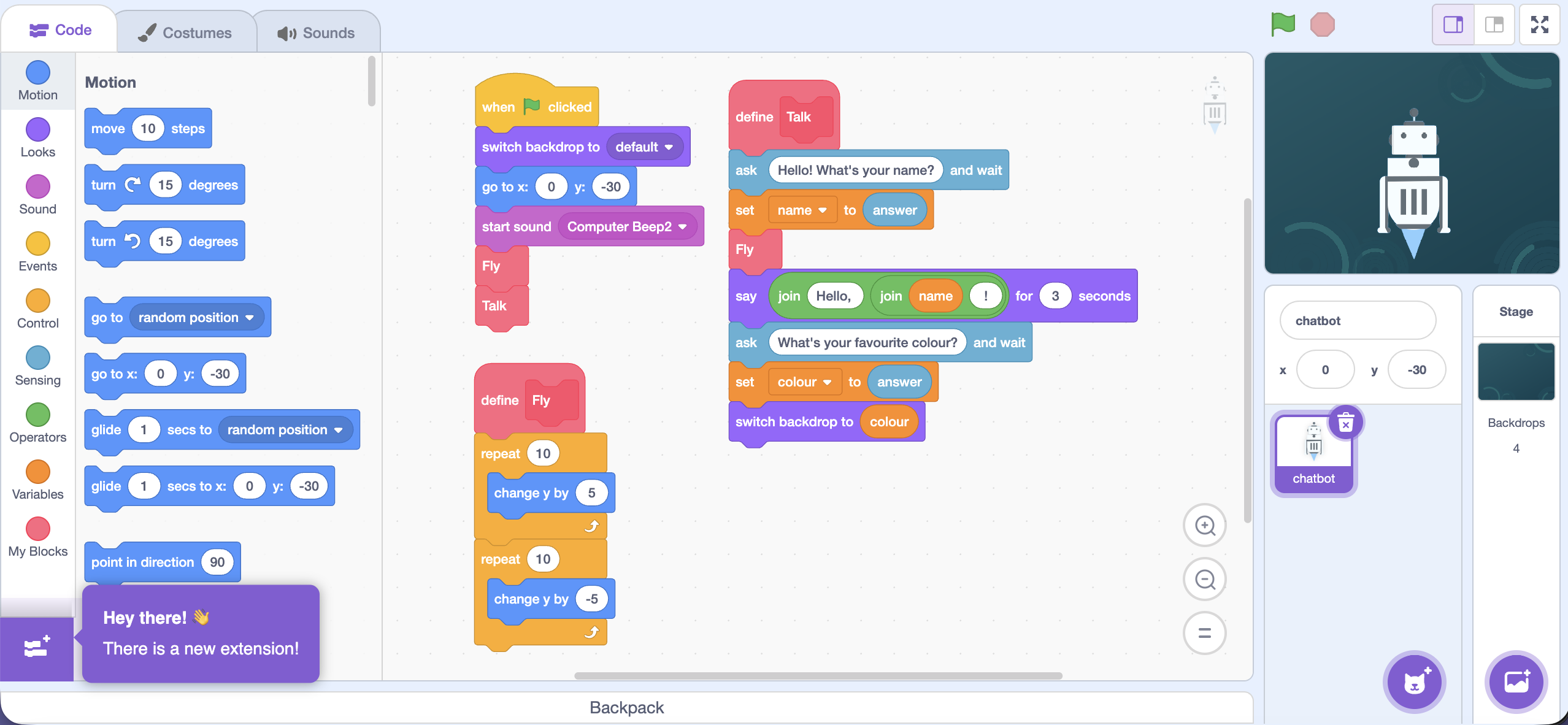
Here is a simple chatbot program created in Scratch. The chatbot talks to the user, asks a few questions, and reacts to the answers.
What does the program do?
1. When the green flag is clicked
- The backdrop changes to the default background.
- The chatbot moves to its starting position.
- A short computer sound is played.
- The chatbot starts a small flying (up and down) animation.
- The chatbot begins the conversation.
2. Chatbot animation (Fly)
- The chatbot moves up a little.
- Then it moves down a little.
- This is repeated several times, so the chatbot looks like it is flying.
3. Chatbot conversation (Talk)
- The chatbot asks: “Hello! What’s your name?”
- The program waits for the user’s answer and stores it in a variable called
name. -
The chatbot says: “Hello, [name]!” for 3 seconds.
-
Next, the chatbot asks: “What’s your favourite colour?”
- The answer is stored in a variable called
colour. - The backdrop changes to the colour chosen by the user.
What can you learn from this example?
- How to ask questions using ask … and wait
- How to store user input in variables
- How to change the backdrop using a variable
- How to create a simple chatbot in Scratch
Evaluation Criteria
| Ref. | Definition | CE |
|---|---|---|
| 2.1 | Analyse elementary problems meaningful to students through abstraction and modelling of reality. |
CE2 |
| 2.3 | Solve elementary problems in a guided way using the necessary algorithms and data structures. |
CE2 |
| 2.4 | Program simple applications in a guided way to solve elementary problems. |
CE2 |
| 4.1 | Participate actively in teamwork to develop digital and technological solutions, showing empathy and respecting assigned roles and the contributions of others. |
CE4 |